Most desk workers do not need blue-light glasses first. In most cases, the best first steps are to warm your screen, cut glare, take breaks, blink more, and keep screens away from bedtime. A 2023 Cochrane review of 17 trials found blue-light-filtering lenses did not help much with eye strain or sleep compared with standard lenses.
Here’s the short version:
- Blue light, glare, and eye strain are different problems
- Blue light matters most at night, when it can affect melatonin and sleep
- Glare and long screen time are more common causes of dry eyes, headaches, and blurred vision
- Blinking can drop by up to 60% during screen use
- Screen use does not appear to cause permanent eye damage based on current evidence
- Start with free fixes first: Night Shift/Night Light, lower brightness, better desk lighting, and the 20-20-20 rule
- If symptoms last 2 to 3 weeks, or you have not had an eye exam in 12 months, it is smart to get checked
A few setup targets can help right away:
- Keep your monitor about 18 to 28 inches away
- Place the top of the screen at or slightly below eye level
- Use warmer room bulbs around 2,700K to 3,000K at home
- Try screen-free time 1 to 2 hours before bed
| Issue | Main cause | What I’d try first |
|---|---|---|
| Sleep trouble after screen use | Evening blue light exposure | Night mode, warmer screen, less screen time before bed |
| Squinting or washed-out screen | Window or overhead light glare | Reposition desk, close blinds, add anti-glare filter |
| Dry eyes, blur, headaches | Long near work and less blinking | 20-20-20 rule, conscious blinking, artificial tears |
If I were setting up a work screen today, I’d fix the display and room first, not buy special lenses right away.
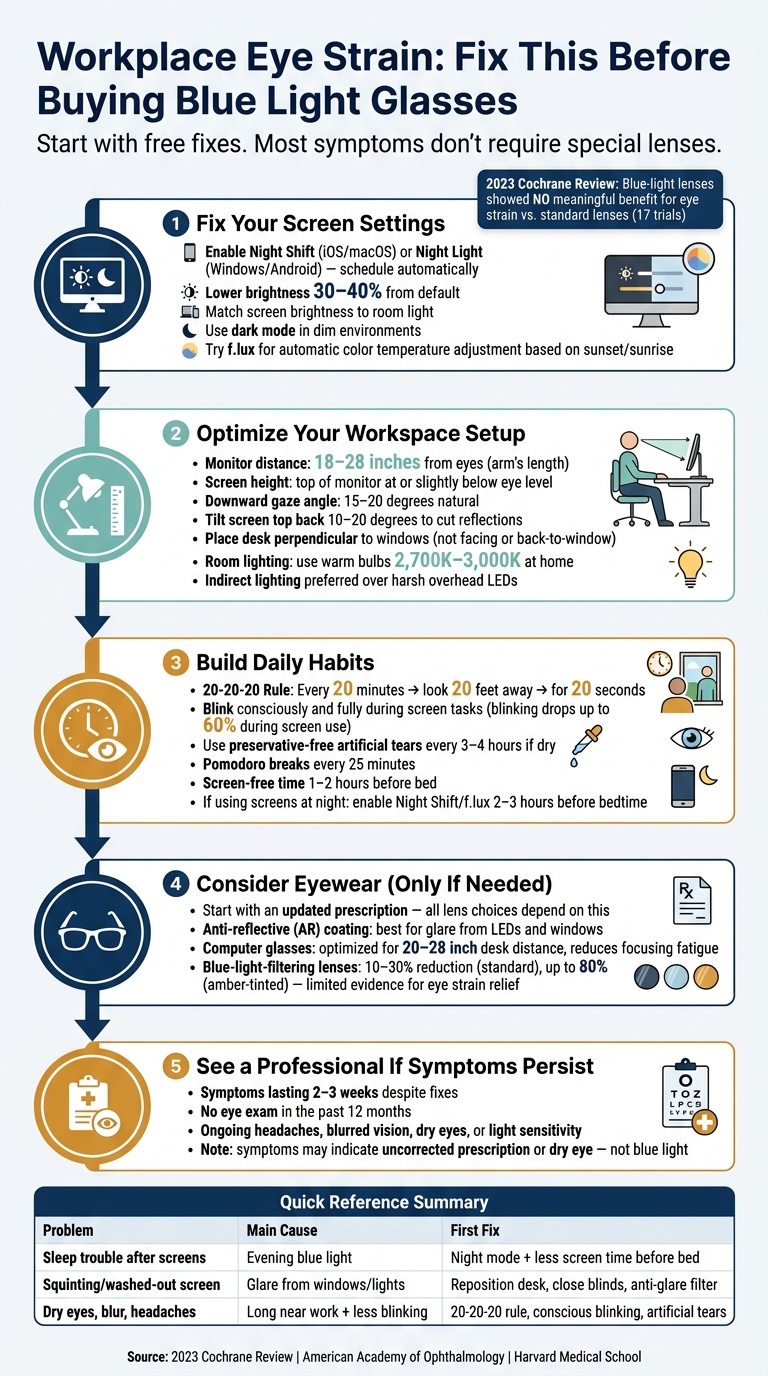
Workplace Eye Strain: Fix This Before Buying Blue Light Glasses
Blue Light: What Is It & Should You Use Blocking Glasses?
sbb-itb-5ef6ec9
Device Settings and Screen Tools That Cut Blue-Enriched Light
Start with the display itself. Then deal with the room lighting.
Use Built-In Night Modes and Adjust Brightness, Contrast, and Color Temperature
Turn on Night Light or Night Shift on Windows, macOS, Android, iPhone, and iPad, and set it to switch on automatically. These settings help most in the late afternoon and evening, when bright, cool-toned screens can feel a bit harsh.
A good rule: match your screen brightness to the room. Then make the display a little warmer. Lower brightness by about 30% to 40% from the default setting and adjust from there until it feels comfortable.
In dim rooms, try dark mode or a high-contrast theme. This can reduce screen luminance and make text easier to read.
Add Software Filters or Physical Monitor Screens When Needed
Built-in night modes are fine for basic color changes. But if you want more control, software filters and physical screen covers can help.
For example, f.lux works on Windows, macOS, Linux, and Android. It changes your screen’s color temperature automatically based on local sunrise and sunset times. That means you can set it once and let it do the work in the background.
Physical anti-glare filters help when the problem isn’t just screen color, but glare from windows or overhead LED lights. Software can’t solve that. These filters are sold for most standard monitor sizes and laptop screens.
| Type of Tool | Devices Supported | How It Changes Light Output | Advantages | Limitations or Considerations |
|---|---|---|---|---|
| Built-in Night Modes (Night Shift, Night Light) | Windows, macOS, iOS, Android | Shifts color temperature to warmer (yellow/orange) tones | Free; built into the operating system; can be scheduled automatically | May distort color accuracy for graphic design work |
| Software Filters (f.lux) | Windows, macOS, Linux, Android | Automatically adjusts warmth based on local sunset/sunrise | Highly customizable; gradual transitions | Requires installation; may conflict with OS settings |
| Physical Screen Filters | Laptops, Desktop Monitors | Physical layer that blocks blue wavelengths and reduces reflections | Cuts reflections; provides privacy on some models | Can slightly dim the screen; requires correct sizing for hardware |
| Dark Mode | Most modern operating systems and apps | Inverts background/text colors | Reduces overall light intensity; improves text legibility | Some users notice "halo" effects on white text over dark backgrounds |
If the screen still feels harsh after these changes, the next step is to fix the room layout and lighting.
Workspace Lighting and Ergonomics That Improve Visual Comfort
Screen settings matter, but the room around your monitor often has a bigger effect on comfort. After you dial in brightness, contrast, and text size, lighting and monitor placement usually become the main drivers of eye strain.
Set Monitor Distance, Height, and Room Light to Reduce Strain
A lot of people set their monitor too close or too high. That sounds minor, but it can wear you down over a full workday.
Place your screen 18 to 28 inches from your eyes – about an arm’s length – and keep the top of the monitor at or a little below eye level. That setup lets your eyes rest in a natural downward gaze of about 15 to 20 degrees. You can also tilt the top of the screen back 10 to 20 degrees, which may cut reflections and help keep your neck in a more relaxed position.
Room light matters too. If your monitor is the brightest thing in the room, it’s too bright. The screen shouldn’t feel like a glowing spotlight on your desk. A softer, more even light setup tends to feel better. Indirect lighting usually works better than harsh overhead lights because it reduces sharp contrast across the room.
Reduce Glare From Windows, Overhead LEDs, and Reflective Surfaces
Glare is easy to miss, but it’s one of the biggest day-to-day causes of eye discomfort at work. In many cases, it causes more strain than blue light.
A simple fix is to place your desk perpendicular to windows instead of directly in front of them or with the window behind you. That helps limit bright reflections on the screen. Blinds or curtains can also help when sunlight gets too strong.
For home offices, warm soft-white bulbs in the 2700K to 3000K range can help cut down on blue-heavy room light.
Once glare is under control, break habits are usually the next place to look if your eyes still feel tired.
Daily Habits and Eyewear Choices for Workplace Blue Light Protection
Once glare and screen settings are under control, your day-to-day habits become the next layer of eye protection.
Follow Break, Blink, and Evening Screen Routines That Support Eye Comfort
The 20-20-20 rule gives your focusing system small, steady breaks and can help cut fatigue. Every 20 minutes, look at something at least 20 feet away for 20 seconds.
Blinking matters more than most people think. During screen work, people tend to blink less, which can leave eyes dry and tired. Blink fully and often, and if dryness sticks around during long work sessions, use preservative-free artificial tears.
Sleep can get pulled into the mix too. Try to make room for screen-free time 1 to 2 hours before bed. If you still need to use a device, turning on Night Shift or f.lux 2 to 3 hours before bedtime shifts the display toward warmer tones and may make it easier to settle down for the night.
| Strategy | Primary benefit | Ease of adoption | Recommended frequency | Evidence or guidance source |
|---|---|---|---|---|
| 20-20-20 Rule | Relaxes ciliary (focusing) muscles | High | Every 20 minutes | American Academy of Ophthalmology |
| Conscious Blinking | Restores moisture | Moderate | Continuous during tasks | Poudre Valley Eyecare |
| Screen-Free Time Before Bed | Supports melatonin production | Moderate | 1–2 hours before bed | Harvard Medical School |
| Preservative-Free Artificial Tears | Relieves dryness and burning | High | Every 3–4 hours | Poudre Valley Eyecare |
| Pomodoro Breaks | Reduces musculoskeletal and visual fatigue | Moderate | Every 25 minutes | Poudre Valley Eyecare |
Choose Computer Glasses, Anti-Reflective Lenses, or Blue-Light-Filtering Lenses Based on Your Work Setup
If better habits don’t fully fix the issue, the next step is to match your lenses to your desk distance and lighting. The main idea is simple: pick lenses based on the problem you’re dealing with, whether that’s focus strain, glare, or a prescription issue.
Computer glasses are made for desk distance, usually around 20 to 28 inches. That setup can reduce how hard your focusing muscles have to work during the day.
Anti-reflective (AR) coatings cut surface reflections and glare from overhead LEDs and windows. That can improve contrast and reduce squinting, even though AR coatings don’t filter blue light on their own.
Blue-light-filtering lenses get a lot of attention, but the research doesn’t show much relief for eye strain. A 2023 Cochrane review of 17 randomized controlled trials found no meaningful benefit for eye strain or sleep compared with standard lenses. Even so, some people like amber-tinted lenses for evening screen use.
| Eyewear option | Amount or type of blue light or glare reduction | Best-suited work scenarios | Potential benefits | Limitations or when clinical assessment is advisable |
|---|---|---|---|---|
| Computer Glasses | Minimal blue light focus; optimized for desk distance | Dedicated desk work (20–28 inches) | Reduces focusing fatigue | Requires a specific prescription; not for driving or distance tasks |
| Anti-Reflective (AR) Coating | High glare reduction from surfaces | Bright offices with overhead LEDs or windows | Improves contrast; eliminates distracting reflections | Does not filter blue light unless paired with a blue-AR combo |
| Blue-Light-Filtering Lenses | 10%–30% reduction (standard); up to 80% (amber-tinted) | Evening screen use or light sensitivity | May support sleep onset | 2023 Cochrane review found no benefit for eye strain; see a provider if symptoms persist beyond 2 weeks |
Start with an updated prescription. Every other lens choice depends on that first step.
Conclusion: Build a Workplace Blue Light Plan That Fits Your Eyes and Schedule
Once you’ve adjusted your screen, workspace, and daily routine, the best approach is usually a mix of small fixes that work together: warmer screen settings, less glare, better posture, regular breaks, and lenses that match your setup.
If you still deal with headaches, blurred vision, dry eyes, or light sensitivity, blue light may not be the main issue. In many cases, those symptoms point to an uncorrected prescription problem or dry eye instead.
If those issues continue even after making these changes, the Eye Center of Northern Colorado offers digital eye strain evaluations and lens recommendations based on your needs.
Start with the lowest-cost fixes first. If symptoms stick around, schedule an eye exam.
FAQs
Do I need blue-light glasses for work?
Usually, no. Research shows blue-light glasses don’t do much to cut digital eye strain, headaches, or eye fatigue. In most cases, screen discomfort has more to do with how you use your device – things like posture, how often you blink, and how far you sit from the screen.
That said, they may help with sleep if you’re using screens in the evening.
For eye strain that keeps coming back, the Eye Center of Northern Colorado recommends a comprehensive eye exam. They also suggest paying attention to ergonomics, using the 20-20-20 rule, trying lubricating eye drops, or getting prescription computer glasses.
What causes eye strain more than blue light?
Digital eye strain usually has more to do with how we use screens than with blue light.
The main causes are pretty simple. We blink less when we stare at a screen, and that dries out the eyes. Our eyes also keep adjusting focus, especially when we switch between text, images, and different screen distances. That constant effort can wear them out.
A few other things add to the problem:
- Poor screen contrast
- Improper viewing distance
- Poor posture
- Uncorrected vision problems
Put all of that together, and screen time can leave your eyes feeling tired, dry, or sore even when blue light isn’t the main issue.
When should I get an eye exam for screen symptoms?
Schedule a full eye exam if you haven’t had one in the past 12 months.
You should also book an evaluation at Eye Center of Northern Colorado if your symptoms continue after 2 to 3 weeks of steady digital hygiene, including the 20-20-20 rule.
It’s also smart to get checked if you notice:
- Worsening vision
- Severe dry eyes that don’t improve with lubricating drops
- Headaches that affect your work
These signs can point to more than screen strain, so it’s worth having a doctor take a closer look.